View several PDF documents side by side
Compare contracts, reports, drawings, or source references without switching between separate browser windows.
 Open PickPDF
  Add to Chrome
Quick answer
View several PDF documents side by side
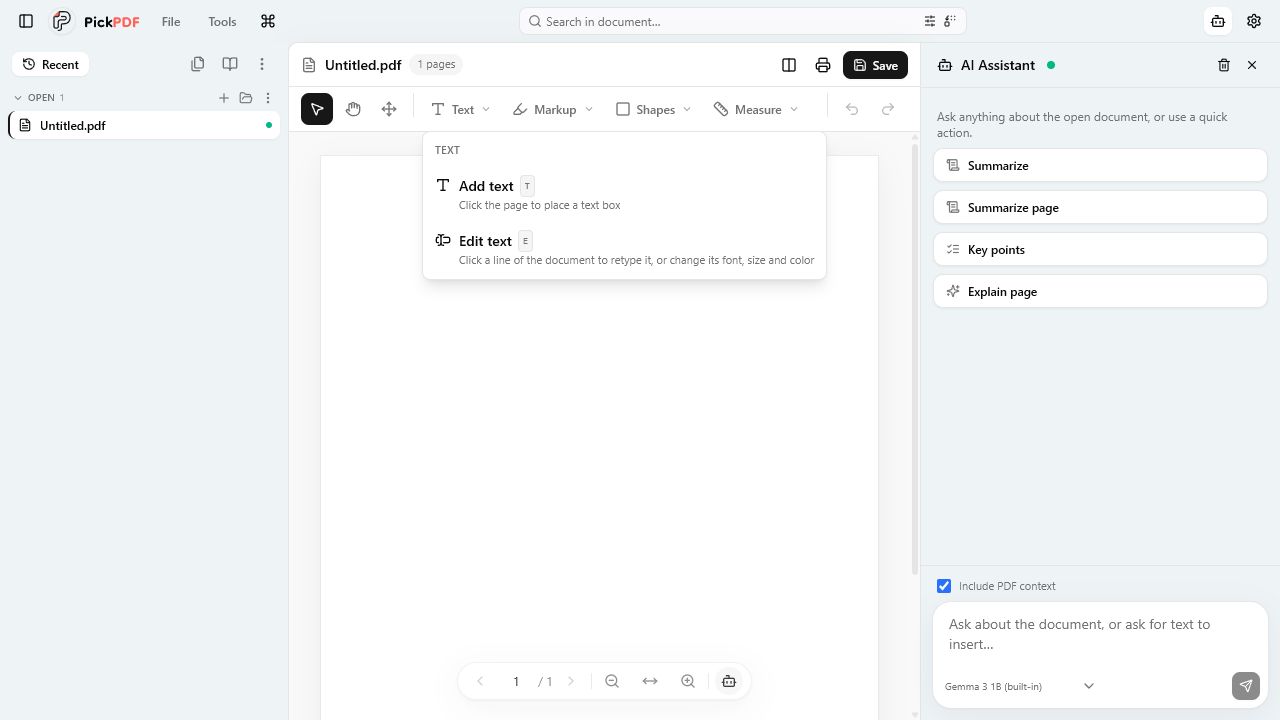
To view multiple PDFs in PickPDF, open each document in a tab and switch to split view. Add up to four panes and assign a document to each pane. The focused pane accepts edits, while reference panes show their saved document state. Confirm the active pane before typing, annotating, or saving.
Step by step
How to use this tool in PickPDF
Open the required documents
Load each PDF into its own tab and label the versions outside PickPDF when file names are ambiguous.
Choose the pane layout
Use two panes for detailed reading or add up to four panes when several references must remain visible.
Focus the editable pane
Click the document you intend to change and verify its tab, title, and page before using an editing tool.
Save the correct document
Review the active tab and output name before saving. Keep source versions unchanged during comparison work.
Current capabilities
What the current PickPDF build supports
- Multiple document tabs
- Two, three, or four viewing panes
- Independent pane view state
- One focused editable pane
- Reference-document viewing
- On-device document handling
Split view keeps reference material in sight
Side-by-side panes help with clause review, translated documents, drawing revisions, invoices, and source-to-output checks. Each pane keeps its own page and zoom state, so you can align related sections without changing another view.
Two panes leave more room for readable text. Three or four panes suit overview work and benefit from a larger display. Increase zoom and use page navigation when small text becomes hard to read.
The focused pane receives editing actions
PickPDF directs edits to the active pane. Reference panes show saved document state and help you compare content. Click the intended pane and verify its title before adding text, placing a signature, deleting a page, or running a document-wide tool.
Use distinct file names for drafts and approved versions. A visual check of the first page may not distinguish two similar documents, and save-in-place access can write changes back to a source file when the platform permits it.
Comparison and split view solve different review tasks
Split view gives a human reviewer direct visual access to several documents. The comparison tool calculates word and rendered differences. Use split view for context and source reference, then use comparison when you need a systematic list of candidate changes.
All open PDFs remain on the device during the viewing workflow. Shared screens and unattended computers can still expose the documents, so close tabs and lock the workstation after sensitive work.
Common questions
Questions about view several pdf documents side by side
How many PDFs can I view side by side?
PickPDF supports up to four panes. You can keep more documents open in tabs and assign the needed files to the panes.
Can I edit every pane at once?
One focused pane receives editing actions. Reference panes keep their own view state for comparison.
Is split view the same as PDF comparison?
No. Split view presents documents for human review. PDF comparison calculates text and rendered differences.