Compare two PDF files for text and visual differences
Review changed words and rendered page pixels without sending either document to a comparison service.
 Open PickPDF
  Add to Chrome
Quick answer
Compare two PDF files for text and visual differences
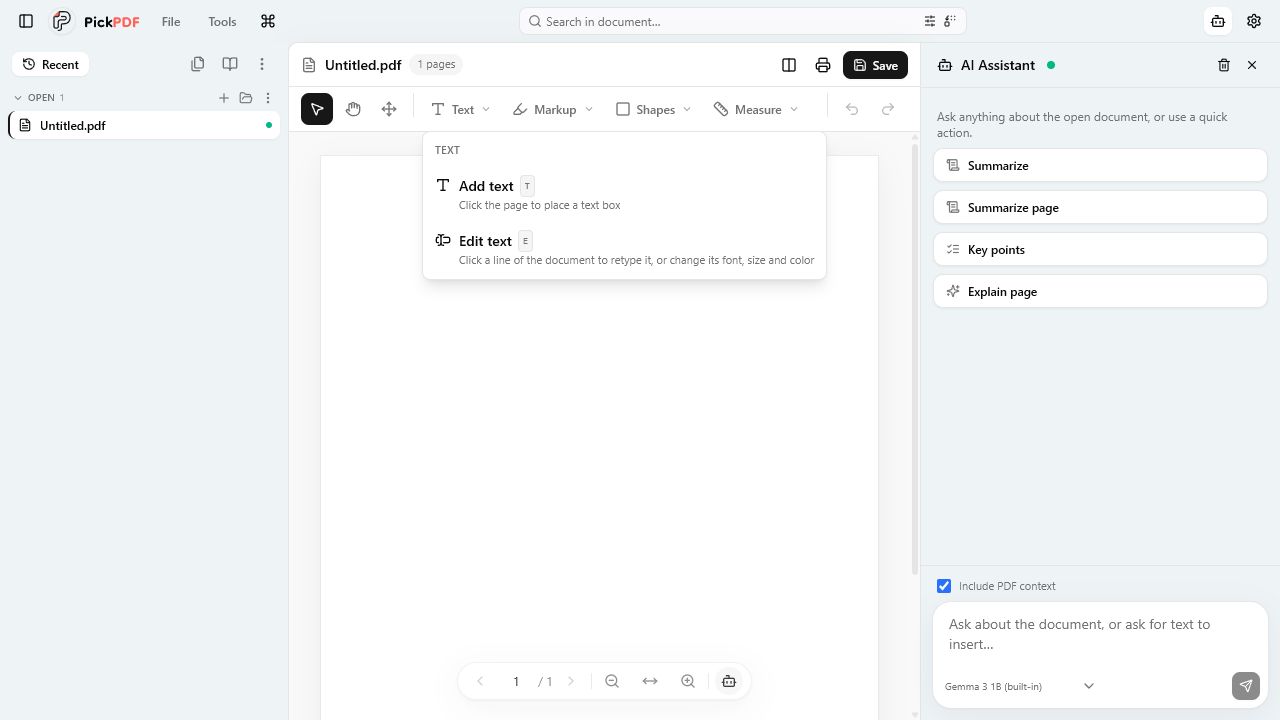
To compare PDFs in PickPDF, select the earlier and later files, then run the comparison. PickPDF extracts available text for a word-level diff and renders both pages for a visual diff. Review inserted, removed, and changed content page by page. Scans may need OCR for a useful text comparison.
Step by step
How to use this tool in PickPDF
Choose the correct versions
Select the baseline and revised PDF. Confirm file names, dates, page counts, and document titles before running the diff.
Run text and visual comparison
Use the text view for changed words and the rendered view for layout, image, line, and formatting differences.
Review differences in context
Inspect the full paragraph or page around each change. Reflow and page shifts can create noise in a mechanical comparison.
Record the review outcome
Save notes or a marked copy according to the team’s approval process. Keep both source versions unchanged.
Current capabilities
What the current PickPDF build supports
- Word-level text comparison
- Rendered pixel comparison
- Page-by-page review
- On-device source handling
- Text-layer awareness
- Support for visual layout checks
Text and visual diffs answer different questions
A text diff finds inserted, removed, or changed words when the PDFs expose usable text in a comparable order. A visual diff finds changes in page rendering, including moved objects, font changes, lines, images, and spacing.
Use both views. A word can remain the same while its position changes, and a scan can look different without exposing text. A new page break can also shift later content and produce many visual differences that share one cause.
PDF structure can create comparison noise
Two files can look alike while storing text in a different object order. Fonts, compression, image encoding, OCR layers, and regenerated form appearances can change between exports. These structural changes can affect a diff without changing the intended message.
Review each flagged region in context and focus on the clauses, figures, signatures, and attachments that matter to the decision. The comparison helps a reviewer find candidates; it does not approve a contract or certify document identity.
Prepare scans before text comparison
Image-only pages need OCR before PickPDF can compare their words. Run OCR with the same document language on both versions when possible, then account for recognition errors in names, punctuation, and numbers.
PickPDF keeps both comparison sources on the device. The rendered and extracted comparison views still expose document content to anyone using the computer, so close sensitive work and protect saved review notes.
Common questions
Questions about compare two pdf files for text and visual differences
Does PDF comparison prove two files are identical?
No. It highlights text and rendered differences for review. Hash comparison and controlled records serve different integrity requirements.
Can PickPDF compare scanned PDFs?
The visual diff can compare rendered scans. Run OCR first when you also need a word-level text comparison.
Are both PDFs uploaded?
No. PickPDF performs the comparison on the device.