Run OCR on a PDF online free on your device
Recognize text on scanned pages and add an invisible layer for search, selection, copy, text work, and the optional AI assistant.
 Open PickPDF
  Add to Chrome
Quick answer
Run OCR on a PDF online free on your device
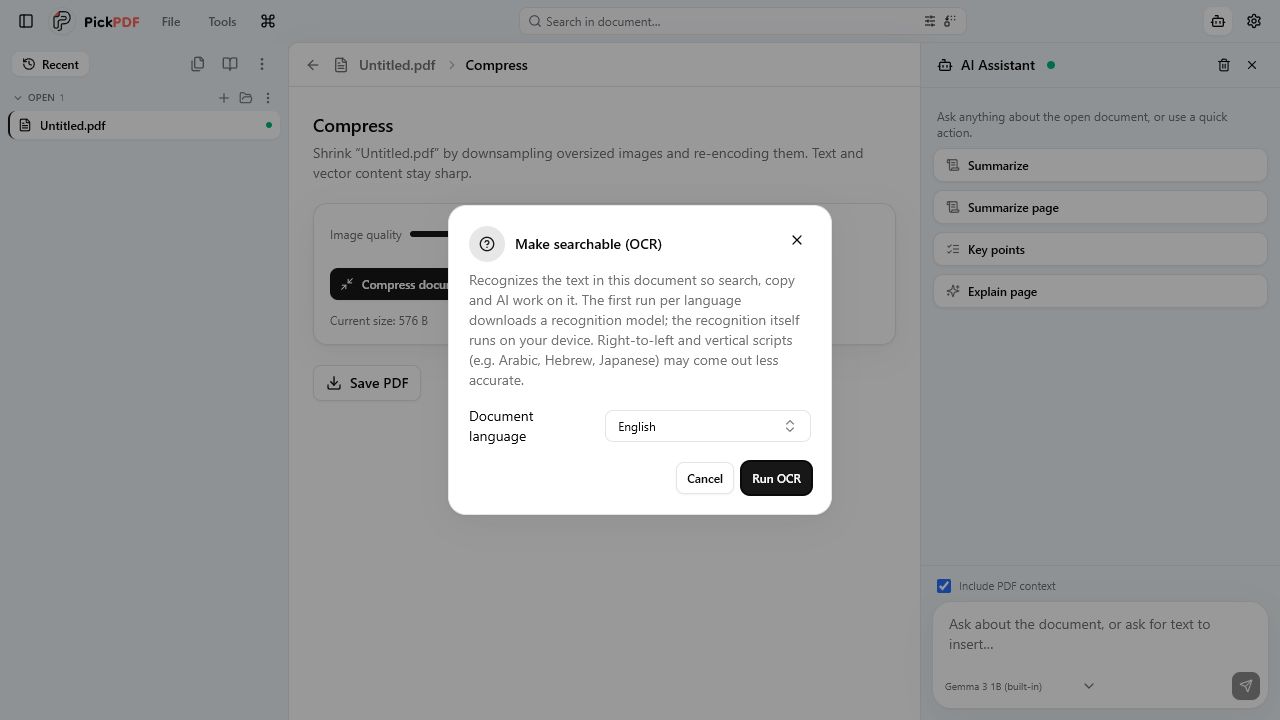
To OCR a scanned PDF in PickPDF, open the scan and choose Make searchable. Select the recognition language and confirm the run. PickPDF downloads that language model once, caches it, and performs recognition on your device with Tesseract.js. It adds an invisible text layer to the PDF so search and copy can find the recognized words.
Step by step
How to use this tool in PickPDF
Open the scan
PickPDF can suggest OCR when it finds pages with no selectable text. You can also start Make searchable from the Tools menu.
Choose the document language
Pick the language that matches most of the page. The first run downloads the recognition model and stores it for later work.
Run local recognition
Tesseract.js analyzes the page images on your device. PickPDF places recognized words into an invisible text layer aligned with the scan.
Search and verify
Search for names and phrases, copy a sample, and compare important numbers with the image. Save the searchable PDF after the review.
Current capabilities
What the current PickPDF build supports
- Tesseract.js recognition on the device
- Cached language models
- Invisible searchable text layer
- Search, selection, and copy support
- Text available to local AI tools
- No scan upload during recognition
A scanned PDF needs a text layer
A scanner usually stores each page as an image. The page looks like text to you, but search and accessibility tools see pixels. OCR estimates the characters and their positions, then adds machine-readable text behind the image.
PickPDF keeps the original scan visible. The added layer supports search, selection, copy, and downstream text workflows without replacing the page with newly typeset content.
What downloads and what stays local
The first OCR run for a language downloads a recognition model from a CDN. PickPDF caches that model. The document pages do not go to that CDN; Tesseract.js runs recognition in the browser or desktop app.
A new language may require another model download. After the model is available, the recognition workflow can run without sending the document to a remote OCR service.
Accuracy depends on the source page
Sharp, straight, high-contrast scans produce better text. Blur, shadows, handwriting, decorative fonts, tables, and multi-column layouts can reduce accuracy. Right-to-left and vertical scripts may also need more review in the current build.
Check names, dates, account numbers, totals, and legal references against the image. OCR output helps you find and work with text; it should not become an unchecked source of truth.
Using OCR with search, editing, and AI
The searchable layer lets PickPDF locate words and send recognized text to the optional AI assistant. It also gives text tools something to select. The visible scan remains an image, so correcting its appearance may require a text box or a rebuilt source document.
Run OCR before exporting scan text to TXT, HTML, or DOCX. The export tools cannot recover words from page pixels until recognition creates the text layer.
Common questions
Questions about run ocr on a pdf online free on your device
Does PickPDF upload scans for OCR?
No. It downloads a language model when needed, then Tesseract.js recognizes the document pages on your device.
Does OCR change the look of the scan?
PickPDF keeps the page image visible and adds an invisible text layer behind it. The layer enables search and selection.
Can I trust every OCR character?
No OCR engine is perfect. Review names, amounts, dates, and other consequential text against the original image.