Compress a PDF online free on your device
Downsample oversized images and adjust JPEG quality while PickPDF leaves text and vector page content untouched.
 Open PickPDF
  Add to Chrome
Quick answer
Compress a PDF online free on your device
To compress a PDF in PickPDF, open the file, choose Compress, set the image quality and target DPI, then run compression. PickPDF finds oversized page images, downsamples them, and re-encodes them on your device. Text and vector graphics stay sharp because the compressor targets raster images.
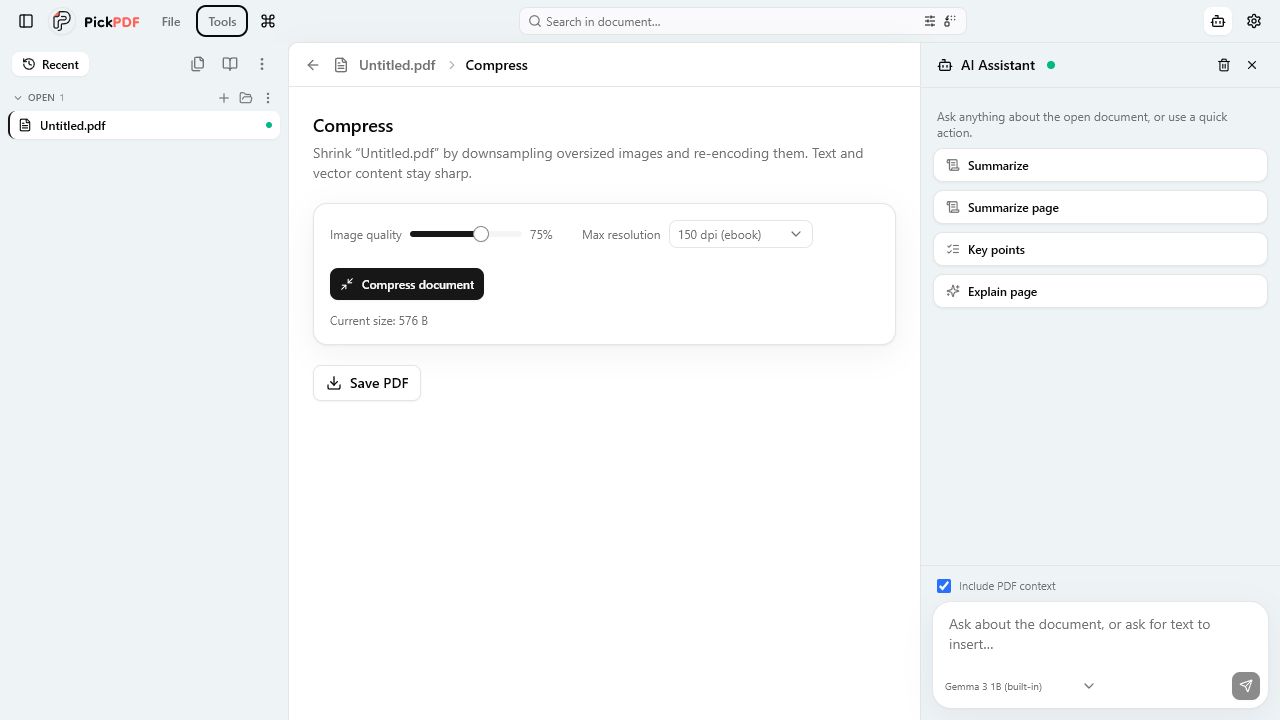
Step by step
How to use this tool in PickPDF
Open the PDF and note its size
Image-heavy scans and photo reports offer the largest savings. Text-only PDFs may already be compact.
Choose quality and target DPI
Use a higher DPI for print and a lower setting for screen review. JPEG quality controls the tradeoff between image detail and file size.
Run compression
PickPDF checks page images, downsamples those above the target resolution, and writes a new version in local memory.
Compare the result
Check the before and after sizes, then zoom into small text inside images, diagrams, signatures, and fine lines before saving.
Current capabilities
What the current PickPDF build supports
- Image downsampling by effective DPI
- Adjustable JPEG quality
- Text and vector content preserved
- Before and after size report
- Local image processing
- No forced compression of already-small images
Why some PDFs shrink more than others
Scanners and phones often place large images on every page. A page displayed at office-paper size does not need the full camera resolution for normal screen reading. Downsampling those images removes pixels the viewer would not show at the intended size.
Text-native PDFs store letters and vector shapes as compact instructions. PickPDF leaves those elements alone, so a text-only document may show little or no reduction. That result means the file did not contain oversized page images to recompress.
Choosing a target DPI
A 150 DPI target often suits screen review and email. Print, small labels, and detailed diagrams may need more resolution. PickPDF only downsamples images whose effective resolution exceeds the chosen target.
Run a test copy when the document includes evidence photos, engineering drawings, handwritten notes, or small type embedded in an image. Zoom beyond normal reading size and inspect the parts that carry meaning.
JPEG quality and visible artifacts
JPEG compression can introduce ringing around dark text, blocks in gradients, and softened edges. Higher quality keeps more detail and produces a larger file. Lower quality saves more space and can damage fine image content.
PickPDF keeps transparency-sensitive images in a compatible format where needed. The compressor reports how many images it processed so you can explain a small change in output size.
Local compression and output review
PickPDF performs decoding, resizing, and re-encoding on the device. The file does not need to travel to a compression service. Large source images can still use significant memory during processing.
Save the compressed result as a separate file until you finish the visual check. Confirm page count, links, forms, and signatures when the PDF contains interactive material.
Common questions
Questions about compress a pdf online free on your device
Why did my PDF barely shrink?
The file may contain mostly text and vectors, or its images may already sit below the target DPI. PickPDF avoids re-encoding images that do not need downsampling.
Will compressed text look blurry?
PDF text and vector graphics stay sharp. Text that exists inside a scan or screenshot is part of an image and can lose detail at low settings.
Does compression happen online?
The compressor runs in the browser or desktop app on your device. PickPDF does not require a document upload for this operation.