Merge PDF files online free on your device
Add PDFs, PNGs, and JPEGs, arrange them in the required order, and build one PDF without sending the source files to a conversion server.
 Open PickPDF
  Add to Chrome
Quick answer
Merge PDF files online free on your device
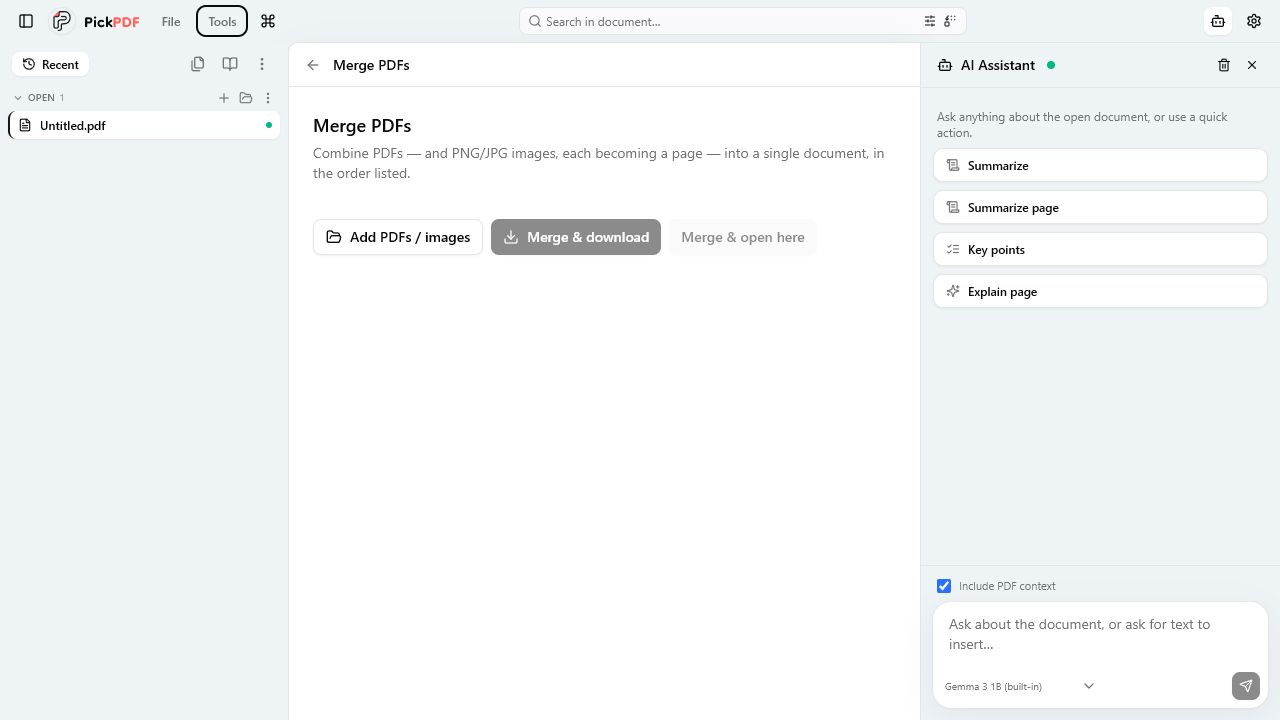
To merge PDFs in PickPDF, open Tools, choose Merge PDFs, and add two or more PDF, PNG, or JPEG files. Move the files into the required order, then create the merged PDF. PickPDF copies PDF pages and turns each image into a page on your device. Open the result to confirm page order and orientation.
Step by step
How to use this tool in PickPDF
Add source files
Choose PDF, PNG, or JPEG files. You can mix document and image inputs in the same merge list.
Set the file order
Move each item up or down. PickPDF adds all pages from the first item before it moves to the next item.
Create the merged PDF
Run the merge. PickPDF assembles the pages in local memory and creates a new document.
Inspect and save
Open the merged file, check page boundaries and image orientation, then save or download the final copy.
Current capabilities
What the current PickPDF build supports
- PDF, PNG, and JPEG inputs
- Deterministic file ordering
- One image per created page
- Local assembly
- New output file preserves sources
- Follow-up page organization tools
How mixed PDF and image merging works
PickPDF reads each PDF and copies its pages into a new document in list order. PNG and JPEG inputs become PDF pages. This mixed-input workflow works well for receipts, signed image scans, exhibits, and reports that arrived as separate files.
The merge screen orders whole files. Use Organize pages after the merge when you need to move one page inside a multi-page source, rotate a scan, duplicate a divider, or insert a blank page.
Page size and image layout
Existing PDF pages keep their page dimensions. Image inputs need a page box, so PickPDF creates a page for each image and fits the pixels into that page. Very tall phone captures and mixed landscape images can produce different page proportions in the same result.
Open the output before distribution. Rotate pages that arrived sideways and crop large margins if a scan includes desk or camera background. Compression can reduce the size of image-heavy merged files after the visual order is correct.
Source files stay separate
Merging creates a new PDF. PickPDF does not rewrite the source files as part of the merge. Give the output a clear name and keep source files until you confirm the assembled document.
The browser and desktop app process inputs on the device. File size and available memory affect large merges, so divide very large jobs into smaller groups if the browser runs short of memory.
Checks for forms, links, and signed material
A merged page can look correct while an interactive feature behaves differently. Test links, bookmarks, form fields, and certificate signatures when they matter. Page copying can change document-level structures that refer to the original file.
Keep a source copy of digitally signed PDFs. Combining signed material into a different document does not carry the same validation context as the original signed file.
Common questions
Questions about merge pdf files online free on your device
Can I merge images with PDFs?
Yes. PickPDF accepts PNG and JPEG images and turns each image into a page in the merged PDF.
Can I reorder individual pages?
Merge orders whole inputs. Open the result in Organize pages to reorder, rotate, duplicate, delete, or insert individual pages.
Are my source files uploaded?
No document-upload step is used. PickPDF reads and assembles the files on your device.