Export PDF content into text, HTML, DOCX, or PNG
Extract an available text layer or render page images on your device for use in another workflow.
 Open PickPDF
  Add to Chrome
Quick answer
Export PDF content into text, HTML, DOCX, or PNG
To export a PDF in PickPDF, choose text, HTML, DOCX, or PNG output. Text-based exports use the PDF text layer, while PNG export renders each selected page. A scan needs OCR before text, HTML, or DOCX export can recover words. Review reading order, tables, columns, and fonts in editable output.
Step by step
How to use this tool in PickPDF
Check whether the PDF has text
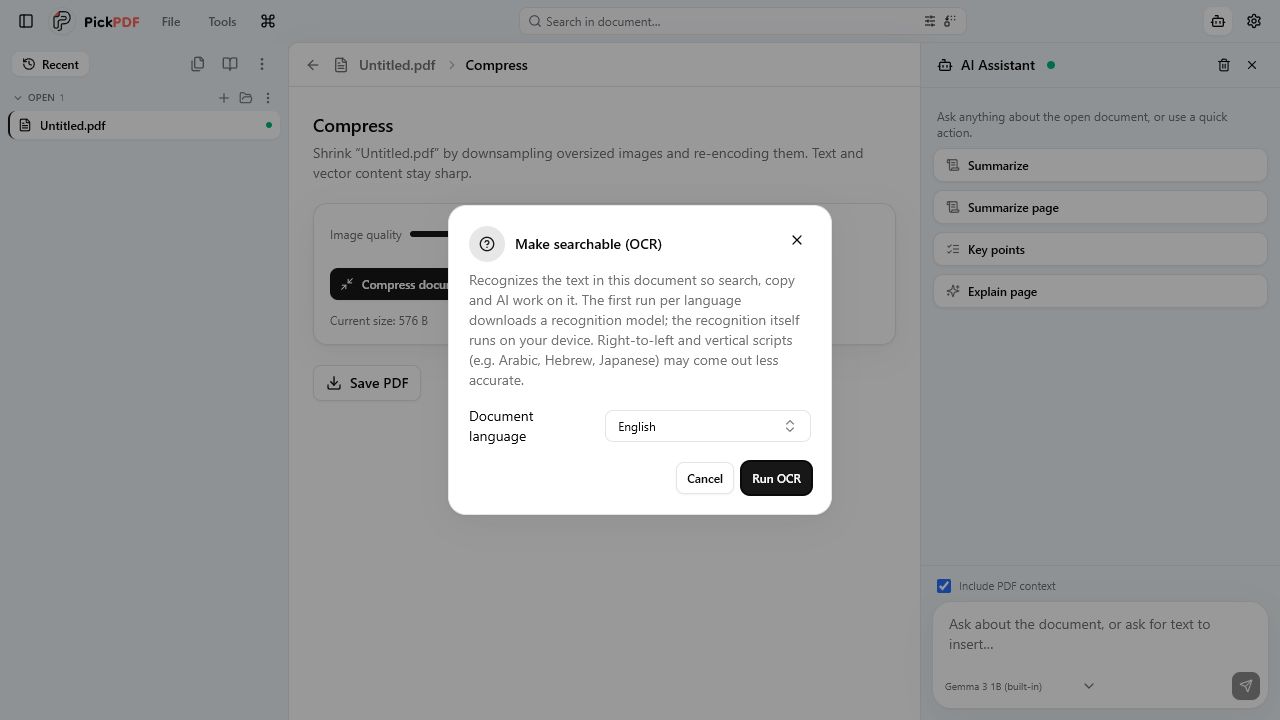
Search or select a word. If the page behaves like one image, run OCR before a text-based export.
Choose an output format
Use text for content, HTML for structured reuse, DOCX for editing, or PNG when the page appearance matters.
Select pages and quality
Limit the page range where possible. For PNG, choose enough resolution for the intended screen or print use.
Review the exported files
Check paragraph order, tables, columns, characters, images, page boundaries, and file names before reuse.
Current capabilities
What the current PickPDF build supports
- Plain-text export
- HTML export
- DOCX export
- High-resolution PNG page rendering
- Selected-page output
- Text-layer and OCR-aware workflow
A PDF text layer stores content, not a word-processing layout
PDF text consists of positioned runs and characters. The file may not store paragraphs, table cells, or reading order in the same form as a DOCX document. Export tools infer structure from positions and tags, so multi-column pages and complex tables need review.
Plain text preserves words with little formatting. HTML can represent headings, paragraphs, and links when the source provides enough structure. DOCX offers an editable result, but it cannot guarantee the original page design.
PNG export preserves appearance instead of editability
Rendering a page to PNG captures the visible page at a chosen resolution. The result works for previews, presentations, image workflows, and archival snapshots. Readers cannot search or select PDF text inside the PNG.
Higher resolution improves small text and line art but increases file size. Crop unwanted margins first and choose a page range to avoid rendering material you do not need.
OCR quality controls scan exports
A scanned page has no usable text layer until OCR recognizes the image. Language selection, scan resolution, skew, handwriting, and background noise affect the recovered words. Compare names, figures, and reference codes with the source.
PickPDF runs the export workflow on the device. The exported files can be easier to copy and search than the source PDF, so apply suitable access controls to each result.
Common questions
Questions about export pdf content into text, html, docx, or png
Can PickPDF convert a PDF to DOCX?
Yes. PickPDF exports available text into an editable DOCX result. Review columns, tables, images, and page breaks after conversion.
Why is my text export empty?
The PDF may contain scanned page images without a text layer. Run OCR and export again.
Can I export only one page as PNG?
Yes. Choose a selected page or range and set the output resolution before rendering.