Create a PDF from PNG and JPEG images
Arrange image files, turn each image into a page, and export one PDF without sending the source images to a conversion service.
 Open PickPDF
  Add to Chrome
Quick answer
Create a PDF from PNG and JPEG images
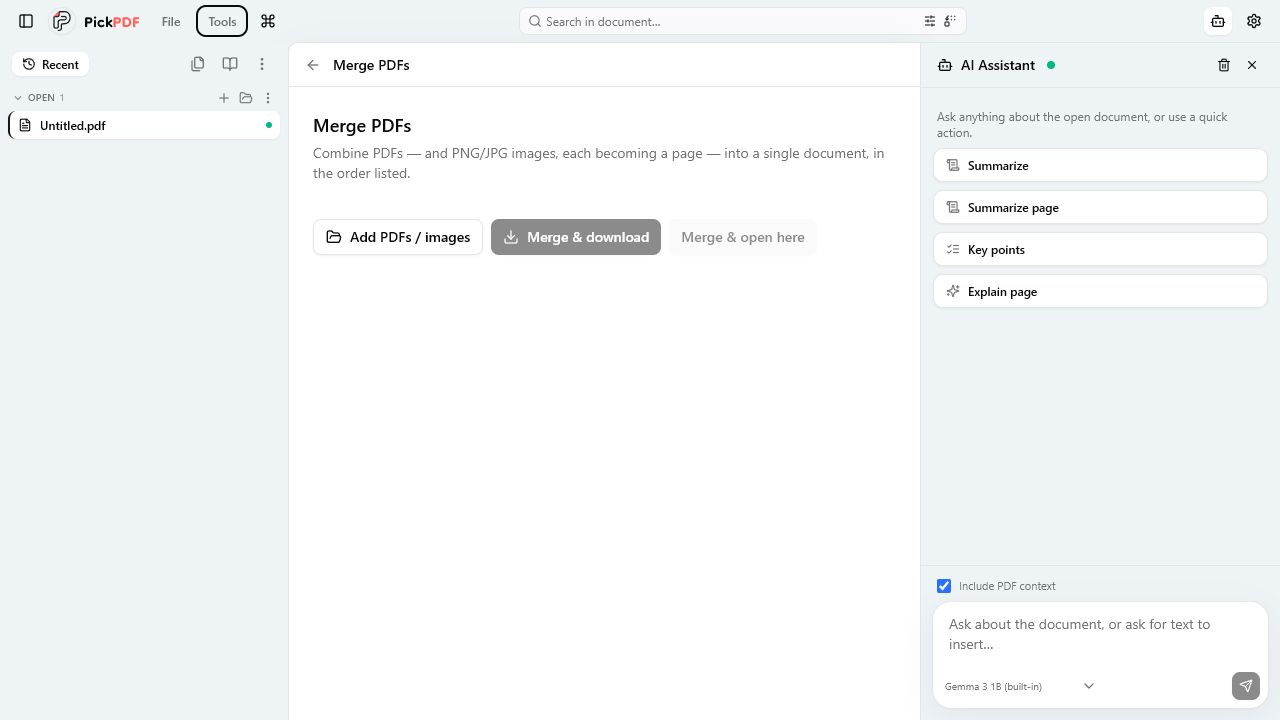
To convert images to PDF in PickPDF, add PNG or JPEG files, drag them into the required order, and choose how each image should fit its PDF page. PickPDF creates one page per image in local memory. You can download the new PDF or open it in the editor for cropping, page numbers, OCR, or other work.
Step by step
How to use this tool in PickPDF
Choose the source images
Add PNG or JPEG files from the device. Check orientation and remove duplicate or unrelated images.
Arrange the page order
Drag images into the sequence readers should follow. Use file content rather than file names to confirm the order.
Choose page fitting
Set how the pixels fit the page. Preserve the aspect ratio to avoid stretching text, forms, or photographs.
Open or download the PDF
Review the generated pages, then download the file or continue editing it in PickPDF.
Current capabilities
What the current PickPDF build supports
- PNG and JPEG input
- One PDF page per image
- Drag-and-drop ordering
- Aspect-ratio-aware fitting
- Open result in the editor
- On-device conversion
Image order becomes PDF page order
The converter treats each image as one page. Arrange scans by document sequence, not by the order returned by a file picker. Check front and back pages, attachments, and repeated camera shots before conversion.
Rotate source images before conversion when their pixel orientation is wrong. Page rotation can correct viewing later, but fixing the image first gives OCR and image export a cleaner source.
Page fitting affects margins and sharpness
An image and a PDF page can have different aspect ratios. Fit mode preserves the full image and may add margins. Fill mode can crop edges. Stretching should be avoided because it distorts text and proportions.
High-resolution photos can create a large PDF. Use compression after conversion when file size matters, and compare the output at the zoom level needed for reading small print.
Scanned images need OCR for searchable text
The new PDF stores each source as an image page. Readers can view the page but cannot search or select words until OCR adds a text layer. Run OCR after you confirm the page order and orientation.
PickPDF assembles the PDF on the device. The result contains the visible information from every image, including margins and background details, so crop or redact material that should not be shared.
Common questions
Questions about create a pdf from png and jpeg images
Can I combine PNG and JPEG files in one PDF?
Yes. Add both formats, arrange them in one list, and PickPDF creates one PDF page for each image.
Will the image text become searchable?
Image conversion alone does not create searchable text. Run OCR on the finished PDF to add a recognized text layer.
Can I reduce the finished file size?
Yes. Open the result in PickPDF and use PDF compression to downsample oversized page images.