Use a local AI assistant with a PDF
Work with document text through a built-in on-device model, Ollama, LM Studio, or a chosen OpenAI-compatible endpoint.
 Open PickPDF
  Add to Chrome
Quick answer
Use a local AI assistant with a PDF
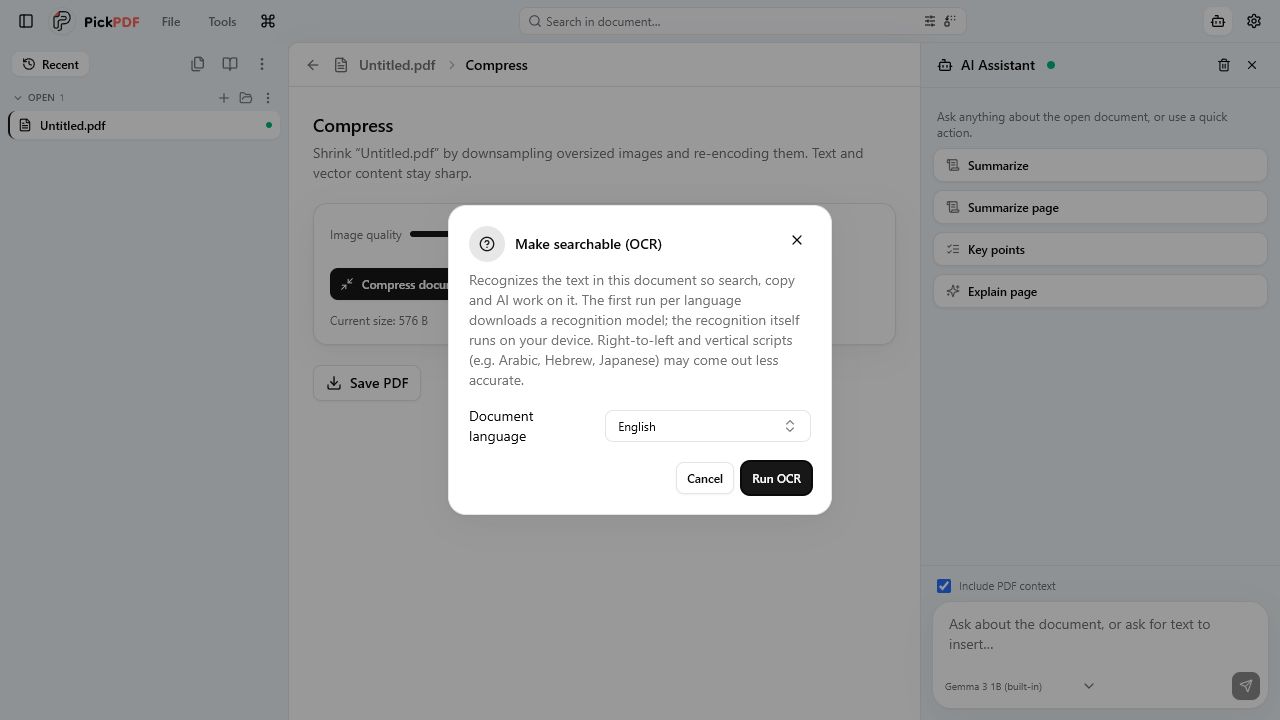
To use local AI with a PDF in PickPDF, open a text-based document or run OCR on a scan, then choose the AI action and text context. The built-in model downloads once and runs through Transformers.js on the device. Ollama and LM Studio can run on your computer; a remote compatible endpoint receives the context you send.
Step by step
How to use this tool in PickPDF
Prepare reliable document text
Search the PDF or run OCR on scans. Correct critical recognition errors before asking the model about names, dates, or totals.
Choose the model connection
Use the built-in model, a local Ollama or LM Studio endpoint, or another compatible endpoint approved for the document.
Limit the context
Send the relevant section instead of the full file when the task concerns one clause, page, or table.
Verify the answer against the PDF
Check every material claim, number, quote, and translation against the source before using it in a decision or edited document.
Current capabilities
What the current PickPDF build supports
- Built-in Transformers.js model
- One-time model download
- Ollama support
- LM Studio support
- OpenAI-compatible endpoint option
- Summarize, explain, rewrite, translate, and question actions
Model location controls where text is processed
The built-in PickPDF model runs in the browser after its model files download. Ollama and LM Studio can expose models from the same computer or a controlled network. An OpenAI-compatible endpoint can be local or remote, based on the URL you configure.
A remote endpoint receives the text context sent with the request. Check the endpoint owner, retention terms, authentication, and organization policy before using it with private documents. The local-first editor cannot make an external AI service local.
OCR and source structure affect the answer
The assistant works from available document text. A scan needs OCR, and a complex table can extract in an order that differs from its visual rows and columns. Recognition errors or missing text become errors in the model context.
Ask focused questions and include the relevant heading or page. Compare the response with the visible PDF. Local processing protects the route taken by the text, but it does not guarantee factual accuracy.
AI output requires human review
A summary can omit exceptions. A rewrite can change meaning. A translation can mishandle defined terms. A question-answer response can combine unrelated passages. Use the output as a draft or navigation aid and keep the source document in the review loop.
Do not treat model output as legal, medical, financial, or compliance advice. The responsible person should verify source clauses, figures, and decisions under the organization’s review process.
Common questions
Questions about use a local ai assistant with a pdf
Does the built-in PickPDF AI upload document text?
The built-in model runs on the device after its model files download. It does not require a remote inference request.
Does Ollama keep the workflow local?
It can when Ollama runs on the same computer or a controlled local system. Verify the endpoint address and network configuration.
Can I trust an AI summary without checking it?
No. Compare material claims, figures, clauses, and omissions with the source PDF before using the output.