Organize pages in a PDF
Reorder and revise the page list with thumbnails while keeping the source document available for recovery.
 Open PickPDF
  Add to Chrome
Quick answer
Organize pages in a PDF
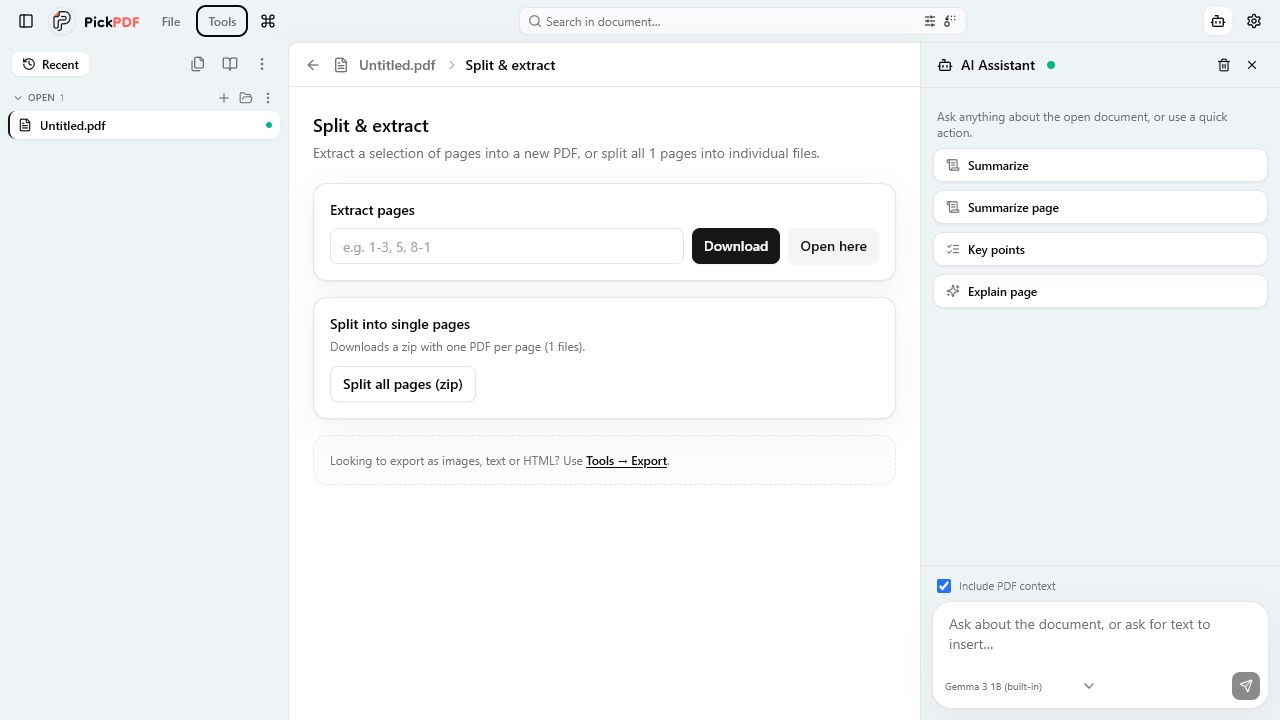
To organize PDF pages in PickPDF, open the thumbnail organizer and select one or more pages. Drag pages into a new order, rotate them, duplicate or delete them, extract a selection, or insert blank pages and pages from another PDF. Save a copy and review page numbers, links, bookmarks, and signatures afterward.
Step by step
How to use this tool in PickPDF
Open the page organizer
Switch from the document view to page thumbnails so the full order remains visible while you work.
Select the affected pages
Choose one page or a range. Confirm the page content in the thumbnail before a delete, extract, or rotation action.
Apply the page operation
Drag to reorder, rotate orientation, duplicate, delete, extract, or insert pages from a blank page or another PDF.
Save and audit the sequence
Reopen the output and check page order, numbering, internal links, bookmarks, forms, and signed sections.
Current capabilities
What the current PickPDF build supports
- Drag-and-drop page reordering
- Clockwise and counterclockwise rotation
- Duplicate and delete
- Extract selected pages
- Insert blank pages
- Insert pages from another PDF
Thumbnail review prevents page-order mistakes
Page numbers printed inside a document can differ from the PDF page index. Use headings, dates, and visible content to identify each page before moving it. Select related pages as a group when an attachment or form section must stay together.
A rotation changes the page orientation for viewing and output. It does not OCR sideways text or rearrange the content. Check mixed portrait and landscape documents at normal zoom after the rotation.
Deletion and extraction create different results
Delete removes selected pages from the working document. Extract copies selected pages into a new PDF. Use extraction when you need a subset and want the full source to remain unchanged.
Inserted pages can change references that depend on page position. Review page-jump links, table-of-contents entries, bookmarks, headers, footers, Bates ranges, and form instructions after you add or move pages.
Signatures and page changes require extra care
A certificate signature can cover a specific byte range in the PDF. Reordering, deleting, or inserting pages after signing can invalidate the signature or show that the file changed. Organize the document before the final signing step.
PickPDF applies page operations on the device. Save a new copy for substantial restructuring so you can compare it with the source and recover an omitted page.
Common questions
Questions about organize pages in a pdf
Can I insert pages from another PDF?
Yes. Choose the source PDF and insert its pages at the required position in the working document.
Should I organize pages before signing?
Yes. Page changes after certificate signing can invalidate the signature or mark the PDF as modified.
Does deleting a page change the original file?
The change affects the working document. Save a new copy unless you intend to overwrite a writable source file.