Fill PDF forms online free or create missing fields
Complete existing fields or design text fields, checkboxes, radio groups, and dropdowns without sending the form data to a server.
 Open PickPDF
  Add to Chrome
Quick answer
Fill PDF forms online free or create missing fields
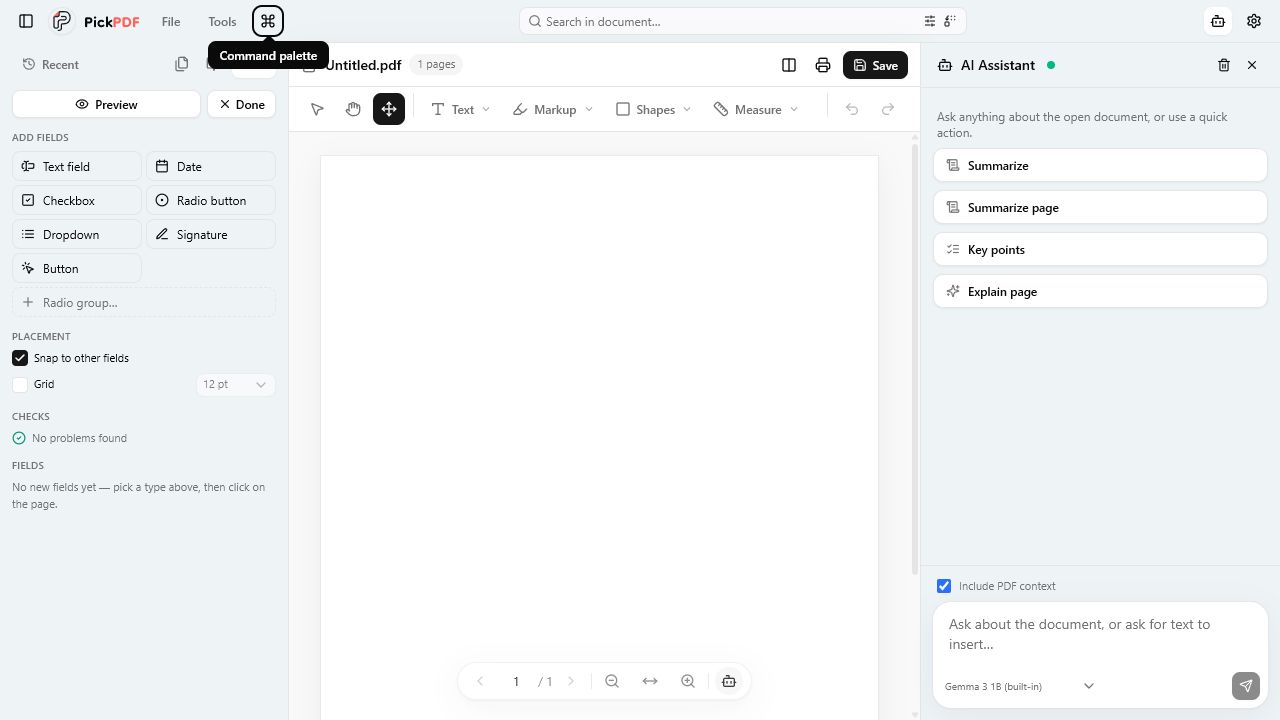
To fill a PDF form in PickPDF, open the file and click its text fields, checkboxes, radio buttons, or dropdowns. Type or select each value, then save a copy. If the PDF has no interactive fields, open the form builder and place new fields. PickPDF writes real AcroForm fields and regenerates their appearances with PDFium.
Step by step
How to use this tool in PickPDF
Open and inspect the form
Click the visible fields. Interactive fields accept input. A flat scan or printed-form PDF needs OCR, added text, or new form fields.
Fill existing fields
Enter text, tick checkboxes, choose radio options, and select dropdown values. Move through the document and review required sections.
Build fields when needed
Use the form builder to place text fields, checkboxes, radio groups, and dropdowns. Give each field a useful name and configure options.
Save and test the completed copy
PickPDF writes values and regenerates appearance streams. Open the saved file in another viewer and check every page before submission.
Current capabilities
What the current PickPDF build supports
- Fill existing AcroForm fields
- Text, checkbox, radio, and dropdown support
- Create and name new fields
- Move, resize, rename, or delete fields
- PDFium-generated field appearances
- Local form-data handling
Interactive forms and flat forms
An interactive PDF contains AcroForm fields with names, types, positions, and values. PickPDF reads those fields and gives you the correct input control. A flat form contains printed lines and boxes but no interactive field definitions.
Use Add text and check marks for a one-time flat-form response. Use the form builder when you want to create a reusable fillable PDF that other viewers can open and complete.
Why field appearances matter
A PDF can store a field value without storing a current visual appearance. Some viewers regenerate the appearance; others show a blank field until you click it. PickPDF asks PDFium to regenerate appearance streams during save so entered values render across viewers.
Open the saved copy in the viewer used by the recipient when possible. Check font size, long entries, check states, and selected radio values.
Building a reusable form
Give every field a unique, descriptive name. Radio buttons in one question belong to a group and need distinct option values. Dropdowns need a defined option list. Tall text fields become multiline fields.
Align fields with the printed labels and leave enough height for the chosen font. Test the blank template and a completed copy before distribution.
Handling private form data
Tax forms, applications, contracts, and health forms can contain sensitive data. PickPDF fills and writes those values on the device. The workflow does not require an account or a form upload.
The saved output still contains the entered data. Protect the file at rest and in transit, remove unneeded attachments, and use document security when the recipient supports the chosen protection method.
Common questions
Questions about fill pdf forms online free or create missing fields
Can PickPDF fill forms that already have fields?
Yes. It supports AcroForm text fields, checkboxes, radio buttons, and dropdowns and writes the chosen values into the PDF.
Can I turn a flat PDF into a fillable form?
Yes. Place and configure new fields with the form builder, then save a reusable PDF with real AcroForm fields.
Why should I reopen the saved form?
Different viewers handle field appearances in different ways. PickPDF regenerates them, but a final check catches clipped text, missed fields, and incorrect option states.