Crop PDF pages and trim unwanted margins
Select the page region readers should see and apply the crop to one page, a range, or the document.
 Open PickPDF
  Add to Chrome
Quick answer
Crop PDF pages and trim unwanted margins
To crop a PDF in PickPDF, draw a crop box around the page region you want to keep, then apply it to the current page, a selected range, or all pages. Cropping changes the visible page box and can hide content outside it. It does not guarantee removal of hidden objects, so use redaction for sensitive information.
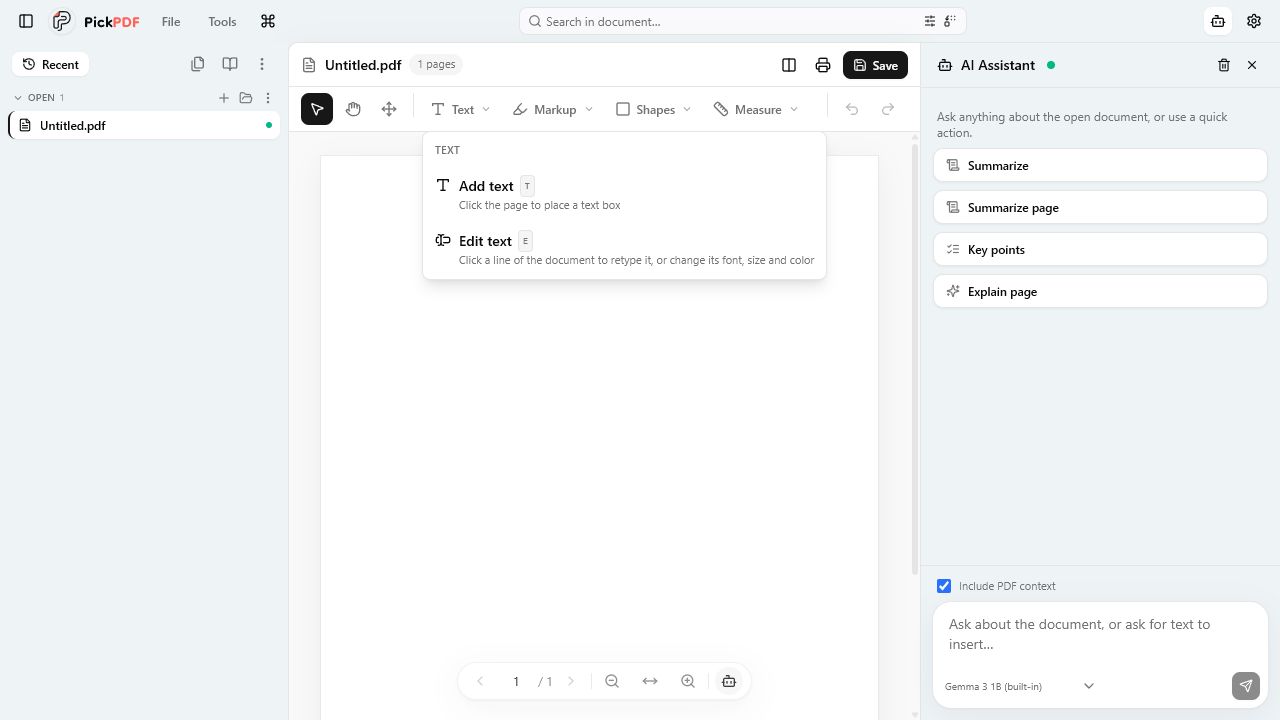
Step by step
How to use this tool in PickPDF
Choose a representative page
Open a page with the margins or region you need to trim. Check whether other pages use the same size and alignment.
Draw the crop box
Place the box around the content readers should see. Leave room for text, marks, page numbers, and print margins.
Choose the page scope
Apply the crop to one page, a page range, or the document. Use a smaller scope for mixed-size files.
Review screen and print output
Inspect each affected page, then check print preview. Reopen the saved copy before distribution.
Current capabilities
What the current PickPDF build supports
- Visual crop-box placement
- Current-page cropping
- Page-range cropping
- Whole-document cropping
- Mixed page-size support through scoped changes
- On-device PDF editing
Cropping changes the visible page boundary
A PDF page can define several boxes, including the media box and crop box. The crop box tells a viewer which region to display or print. Content outside that box may remain in the file even though a reader cannot see it in the normal page view.
Use cropping to remove scanner borders, excess whitespace, registration marks, or an unwanted page edge. Use destructive redaction when the hidden material contains a name, account number, note, or other information that must be removed.
One crop rectangle may not fit every page
Scans can shift from page to page, and a document can mix portrait, landscape, letter, and A4 pages. Review thumbnails before applying one crop to the full document. A page range gives you control over sections that share one layout.
Leave enough space around text and form controls for screen viewing and printing. A tight crop can clip descenders, handwritten marks, annotations, or page numbers that sit near the edge.
Run privacy checks after cropping
Search the PDF, inspect attachments, and use a redaction workflow for private page content. Cropping alone does not remove metadata, annotations, embedded files, or page objects outside the visible box.
PickPDF changes the page boxes on the device. Save a separate cropped copy so you can return to the full page when a margin or note was removed by mistake.
Common questions
Questions about crop pdf pages and trim unwanted margins
Does cropping permanently remove hidden text?
No. Cropping changes the visible page area and may leave page objects in the file. Use redaction when content must be removed.
Can I crop only part of a PDF?
Yes. Apply the crop to the current page or a selected range instead of the full document.
Why should I check print preview?
Printers apply their own margins and scaling. Print preview can reveal clipped edges or unwanted page scaling.